
About
How to view, filter, and edit your consigned inventory in the EDGE Pipeline Seller Portal
Solution
Watch this article instead!
1. Getting Started
Access the Seller Portal from the main navigation bar in Pipeline. You'll need Pipeline membership with an auction handshake configured for your organization.
Log in to Pipeline.
Hover over SELLER PORTAL in the top navigation, then click on Consignment.
Verify your identity with the emailed or texted code.
Once verified, you land on My Inventory, showing all your consigned vehicles across every connected auction.
2. Know the Sale-Time Lockout
Editing is automatically disabled starting 15 minutes before a vehicle's scheduled sale start time, to allow the systems enough time to process changes before buyer proxy bids are submitted to simulcast. Make all changes before this window closes. In table view, you may enter Edit mode, but locked vehicles will show a  icon.
icon.
3. Viewing Your Inventory
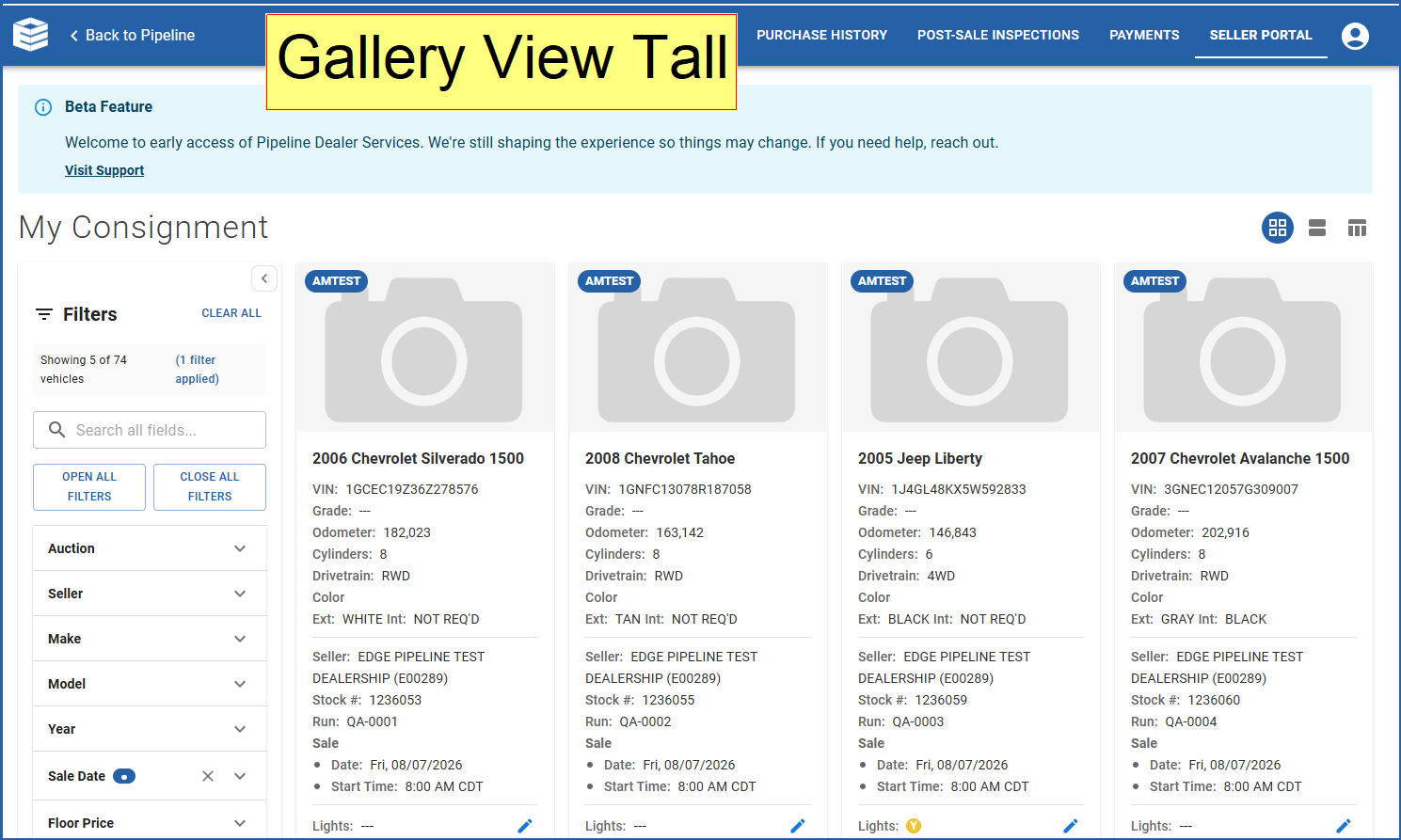
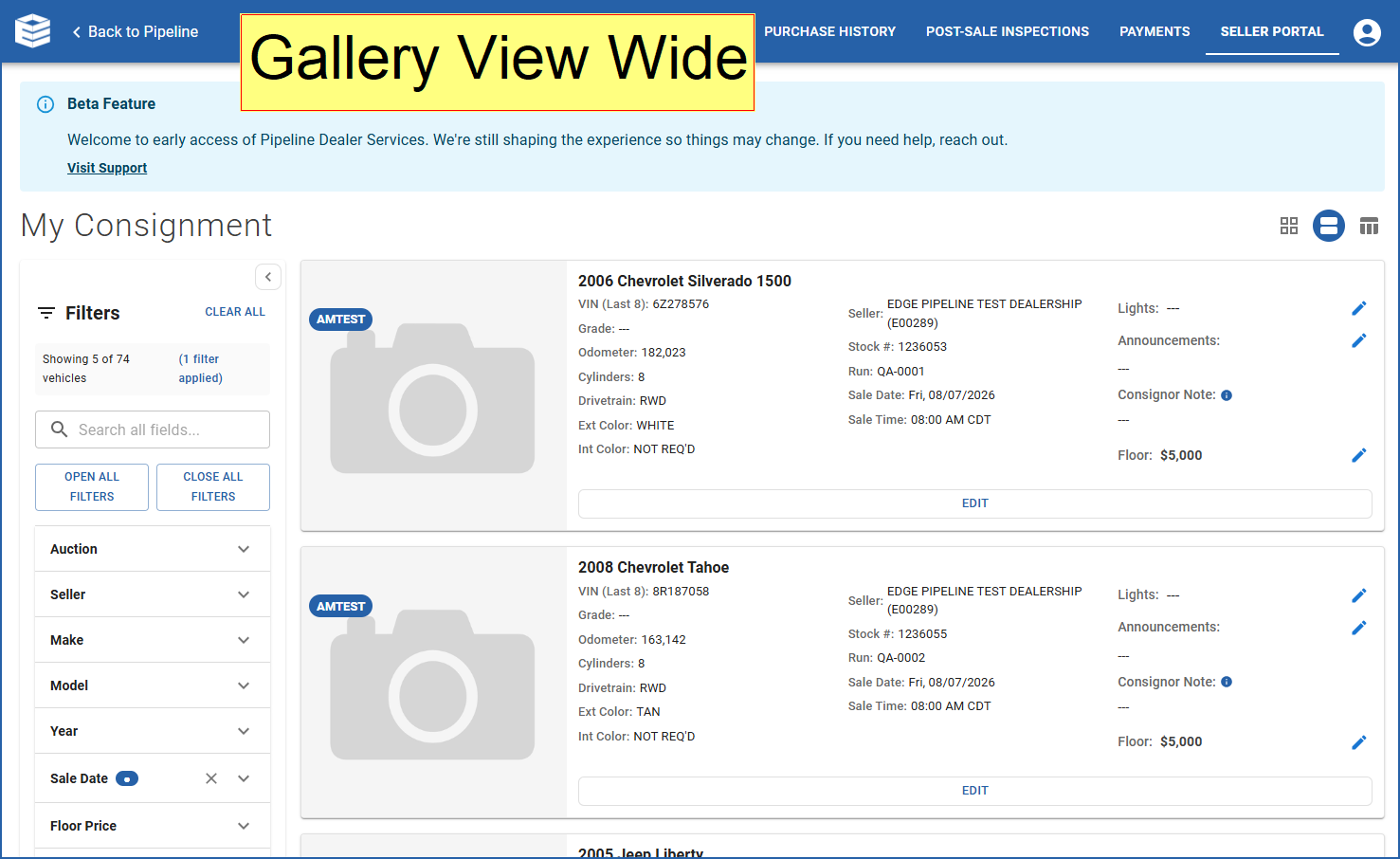
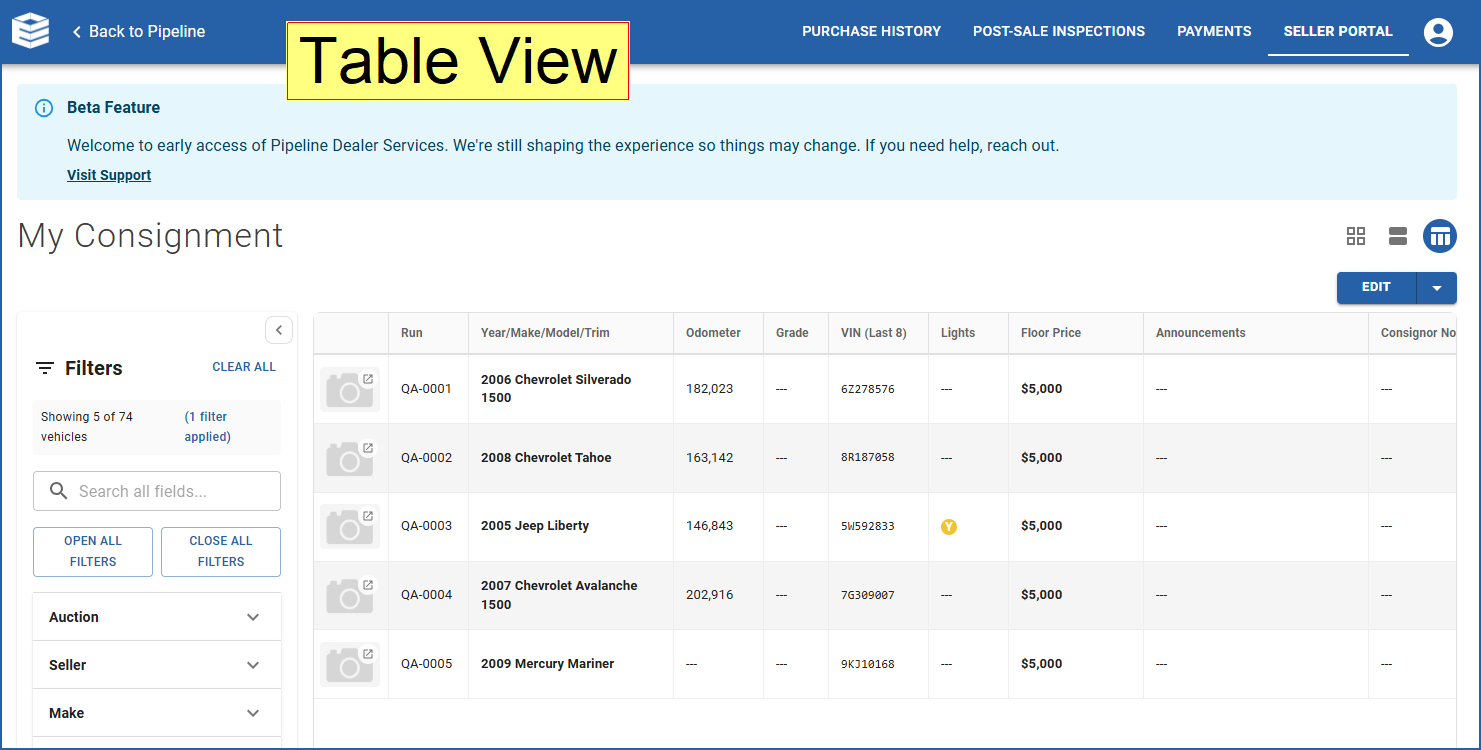
Use the toggle in the top-right corner to switch between two Gallery views (tall or wide cards, good for browsing) and a Table view (dense rows, good for bulk edits).
Both views show the same vehicle data — auction, seller, floor price, announcements, and sale details — just formatted differently.
4. Finding a Vehicle
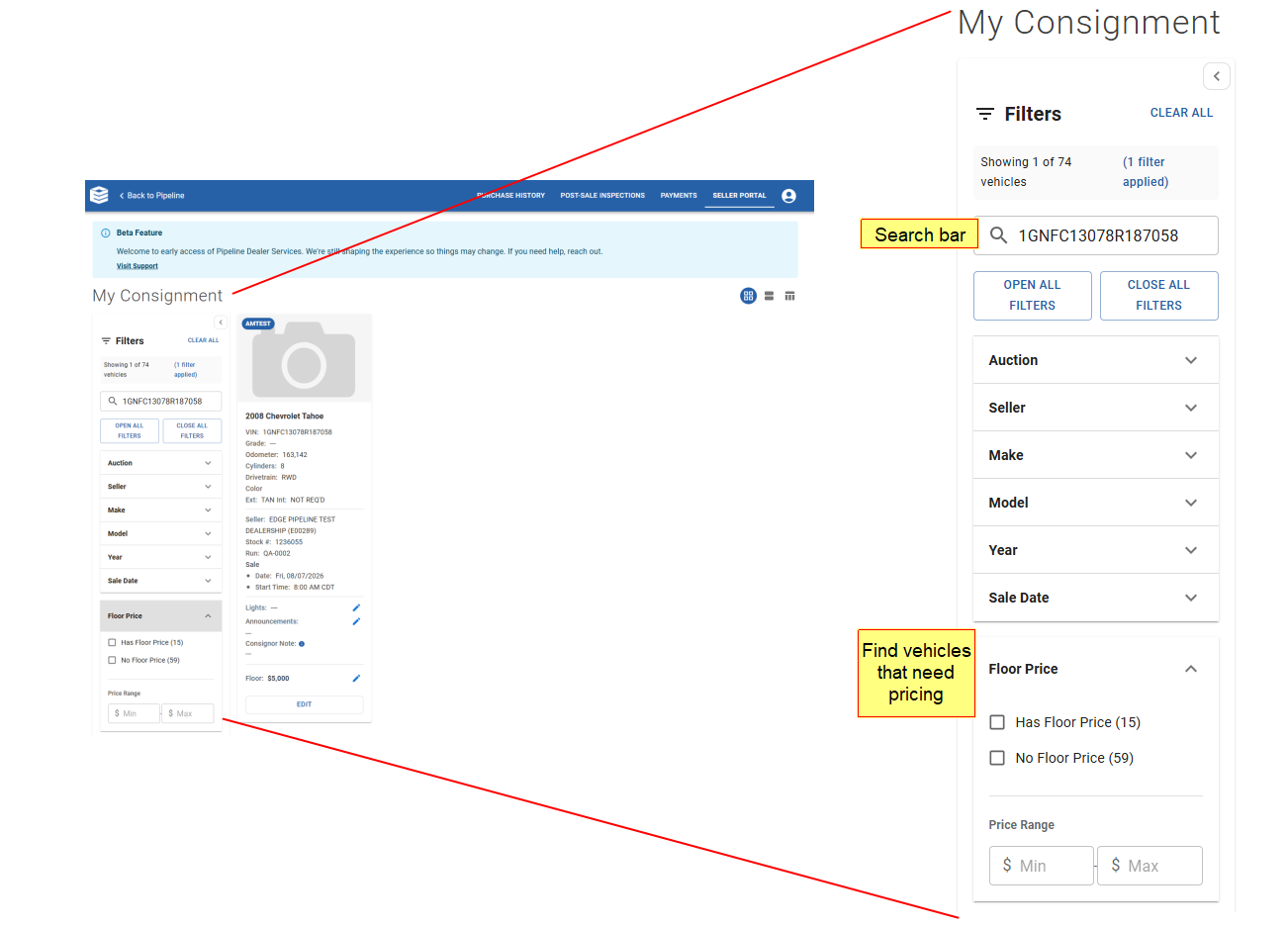
Use the search bar to look up a vehicle by VIN, stock number, or any other field.
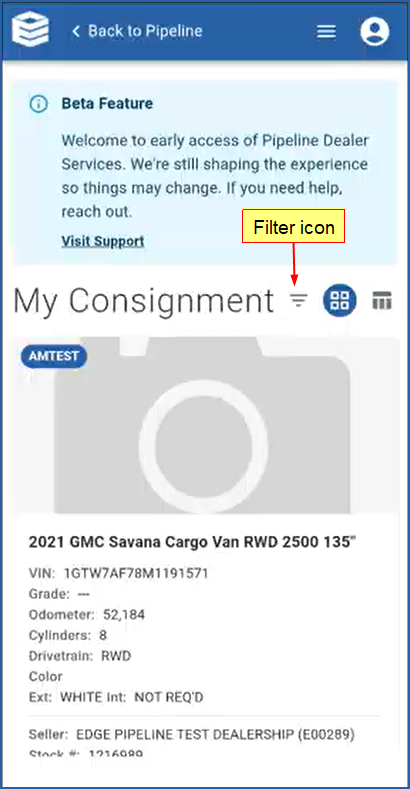
For different results, use the filter sidebar and apply one or more filters — for example, filter by Auction to see only vehicles at selected facilitators, or by Floor Price to see which vehicles still need one set.
Each filter option shows a live vehicle count to see the impact before applying it. Use CLEAR ALL to reset.
5. Editing in Gallery Views
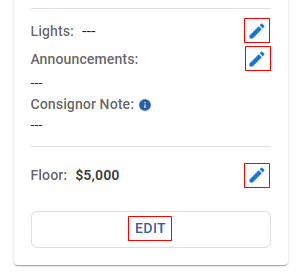
In either Gallery-style view, on any vehicle card, there are two ways to edit sale information: by individual field directly, or by opening an Editing Panel for each vehicle. If you don't see a pencil icon next to a particular field, it is not available for editing at that auction location.
To edit by individual field directly:
Click the pencil icon to open the field you want to edit.
Type the new value.
Save with the checkmark, or cancel with the X.
To edit using the panel:
Click the Edit button at the bottom of the vehicle card.
All editable fields open at once; click through fields or use keyboard shortcuts.
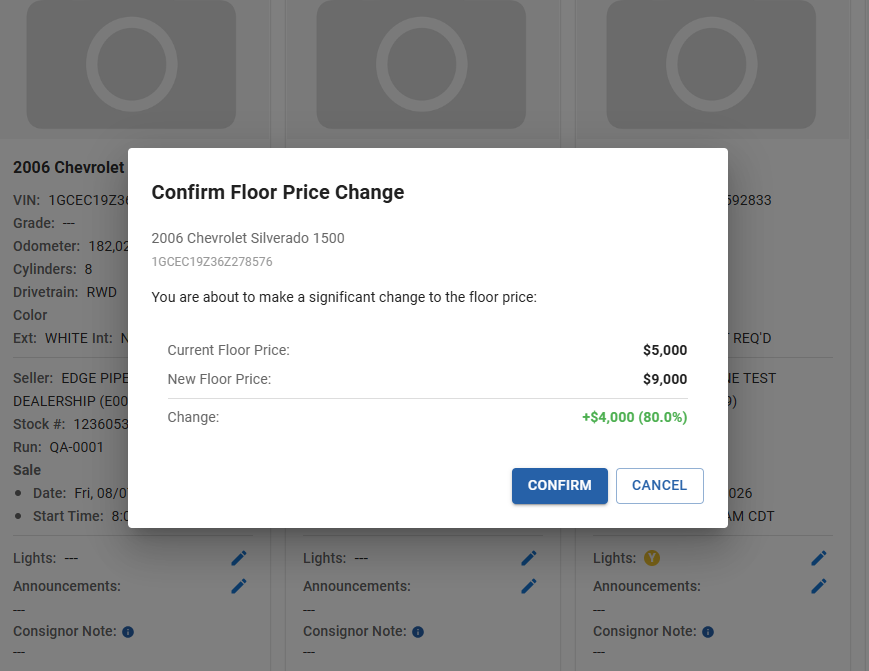
Save the single vehicle to close the panel, or click Save & Next to proceed to the next vehicle, repeating the process until all vehicles have been edited appropriately.
6. Table Bulk Editing
Table view is built for editing many vehicles quickly. Column headers are clickable to sort by the desired column.
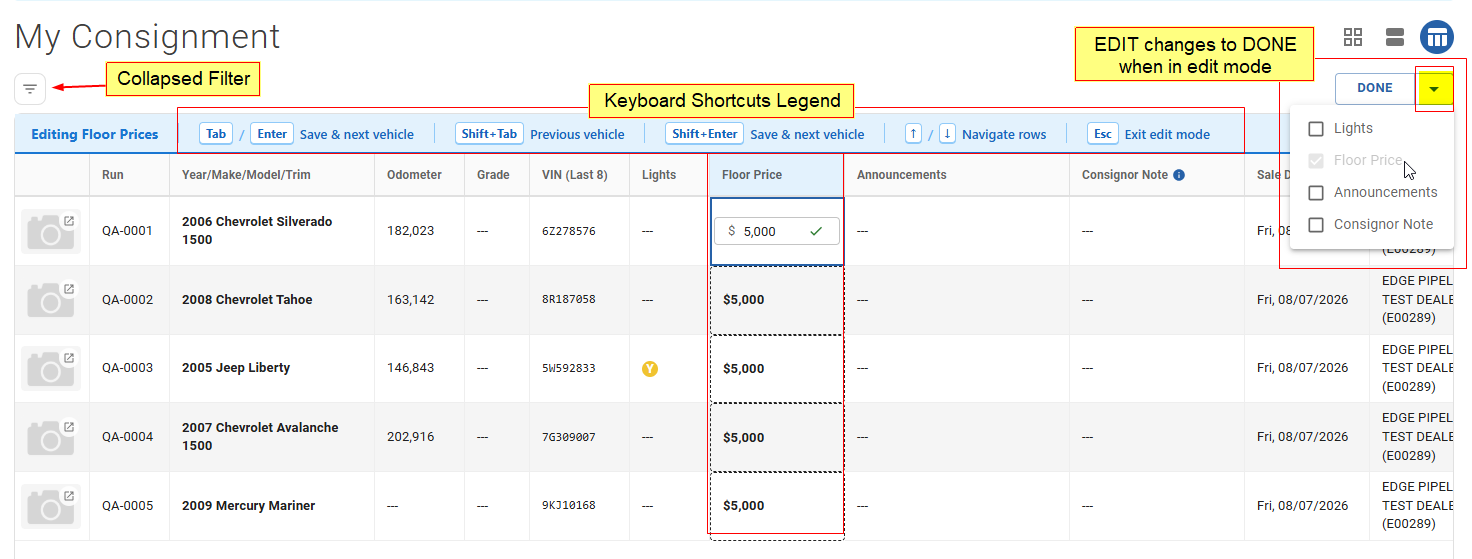
Click the dropdown next to EDIT to choose which fields to edit (at least one must stay checked).
Click EDIT to enter edit mode for your selected field(s). Editable columns get a blue header tint, and sorting is disabled while editing.
Keyboard shortcuts are listed above the table to guide you how to enter/save edits and move between cells/vehicles without touching the mouse. See the quick reference chart below to review these shortcuts.
Click DONE to exit edit mode.
Each cell saves independently after hitting tab or enter: a spinner shows while saving, a green checkmark confirms success, and a red highlight with a tooltip explains any failure.
Keyboard Shortcuts (Table Edit Mode)
7. Using on Mobile
Additional Help and Support
Auction Edge offers first-rate technical support to our subscribing customer auctions. Our dedicated support staff is available Monday through Friday, 7am to 8pm EST.
Help Desk (Toll Free): (800) 522-8404
Support Portal: https://support.auctionedge.com/